Create interactive online quizzes for conferences and training

Quiz Code helps you create interactive online quizzes, engage conference and training audiences and present results live.

Start with your quiz goal and audience

Before opening the quiz builder, decide what you want to check: knowledge after training, understanding of a presentation or familiarity with your team. Choose one topic and prepare a short set of questions. For a first session, you could plan five questions and leave time to discuss the answers. This is a suggested format to adapt to your meeting agenda.

Each question should check one thing. Use short sentences and answers of similar length, and avoid double negatives. If participants need to select several answers, say so in the question.

Why use quizzes during events?

Key Quiz Code creator features

Create an online quiz step by step

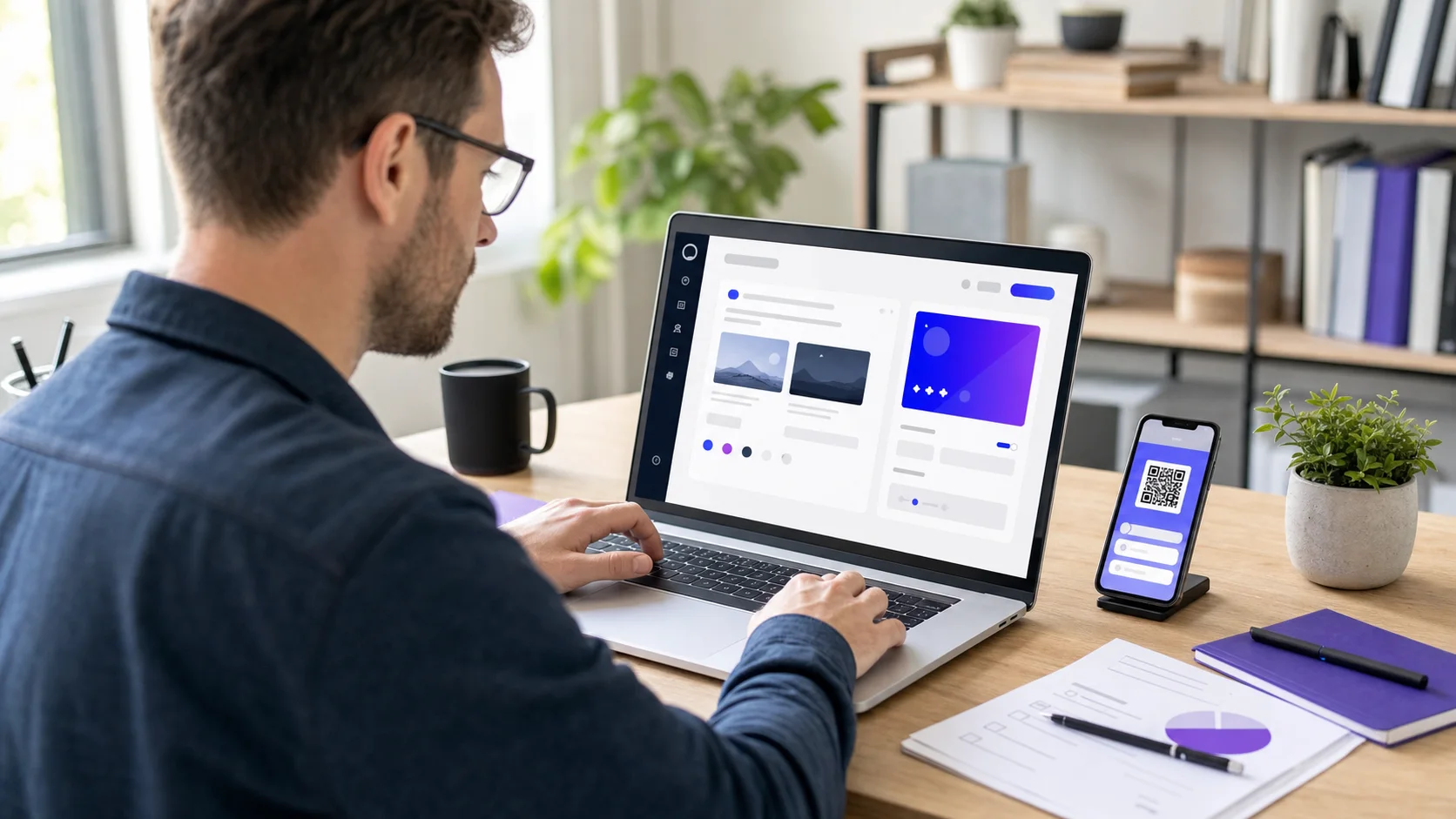
An organiser creates an interactive quiz in Quiz Code on a laptop
Prepare questions, customise the quiz and share a QR code.
  1. Create a quiz with a clear name

    After signing in, add a new quiz in the dashboard. Include the topic or event name so you can find it later. Decide whether it will be a short warm-up or a recap at the end of a training session.

  2. Add questions and mark the correct answers

    Choose single-choice or multiple-choice questions. Add the answer options and mark the correct ones. Include an image when it helps explain the question, such as a product photo. Check that the important details are visible on a small screen.

  3. Set the appearance and participation options

    Match the colours to your event and review the quiz settings. If you collect contact details, prepare the relevant information about their use and any required consent. Collect only the data needed for your stated purpose.

  4. Activate the quiz and test sharing

    Check that the quiz is active and open its link on a participant phone. Complete the whole answer flow. Put the QR code on a slide or printout. For a remote meeting, also share a link in the chat so participants can join from the device they are already using.

  5. Discuss the results and plan a recap

    Show the results and explain the correct answers when the quiz ends. Pay attention to questions that the whole group found difficult. Check the pricing page for export availability and participant limits, and choose a suitable plan before sharing the quiz.

Watch the quiz creation tutorial

Check plans, limits and export availability

Example questions for an online quiz

These examples show how to write questions and useful feedback. Replace them with topics from your own presentation or training session.

Single choice · training

Which question checks one specific topic most clearly?

  • A. What are all the rules for work and communication in the company?
  • B. Where should an employee report a technical problem?
  • C. What did you think of the entire training session?

Correct answer and explanation: B. It asks about one action. In your own quiz, use a question about a specific process and identify the correct reporting channel.

Multiple choice · event preparation

What should you check before sharing a quiz? Select all correct answers.

  • A. Whether the link opens the quiz on a phone.
  • B. Whether the answers are readable on screen.
  • C. Whether the QR code was created without testing it.

Correct answer and explanation: A and B. A test on a participant device checks access and readability. Creating a QR code does not replace scanning it to check that it works.

Checklist before publishing your quiz

  • Read every question and check which answers are marked as correct.
  • Complete a trial run on a phone and check images and special characters.
  • Scan the QR code from the distance at which participants will see it.
  • Check quiz activation, internet access and the participant limit in your plan.
  • Prepare a link for the meeting chat and a slide explaining how to join.
  • Allow time to discuss answers and review your data collection settings.

Match your quiz to the meeting

Use the same quiz builder for different occasions. Choose a guide with an agenda suited to your event:

Quiz Code works for both small workshops and large conferences.

Frequently asked questions

After creating an account, you can immediately add questions and share the quiz.

Yes. Quiz Code supports visual materials in questions and answers.

Yes. Participants answer in a browser without installing an app.

Yes. Quiz Code offers a free plan with quiz and participant limits. Check the pricing page for current limits and export availability. Before your event, make sure the plan fits your group size.

Check that the quiz is active, then share its link or QR code. Paste the link in the meeting chat or show the QR code on a slide. Test participation on a phone before sending it to your audience.

For a short activity, you could plan five questions on one topic. This is a suggested format, not a platform limit. Match the number of questions to your meeting time and leave room to explain the correct answers.